
Installation & Activation
If you purchased your product through the Mac App Store, then the software was automatically installed and activated on your computer, and you can skip this section.
To install the product, double-click on the installer that was downloaded from the link you received with your purchase receipt. For example, if you downloaded a file called “SoundSoap.mpkg”, double-click on this file in the Finder to open the installer. Follow the instructions presented to you by the installer to complete the installation process.
Soundness products must be activated to work on your computer. Keep in mind that for each license of your software – the software may only be used by one user, on one computer system at a time. If you have used both of your activations, and need to activate the software on a new computer, you will need to first de-activate one of the activated computers before you are issued a new activation for the new computer.
Requirements for Activation:
1. The software must first be installed. Follow the instructions you received following the purchase of the product to install the software on your computer.
2. Your activation code must be available. Depending on how you obtained the software, the activation code will be provided in various ways:
• In downloaded purchases – in an email receipt from Soundness
• When bundled with another product – in the accompanying materials for the product the Soundness software is bundled with. Check with the manufacturer of the product the Soundness software is bundled with for more information.
3. The computer you are activating the software on must have internet access available.
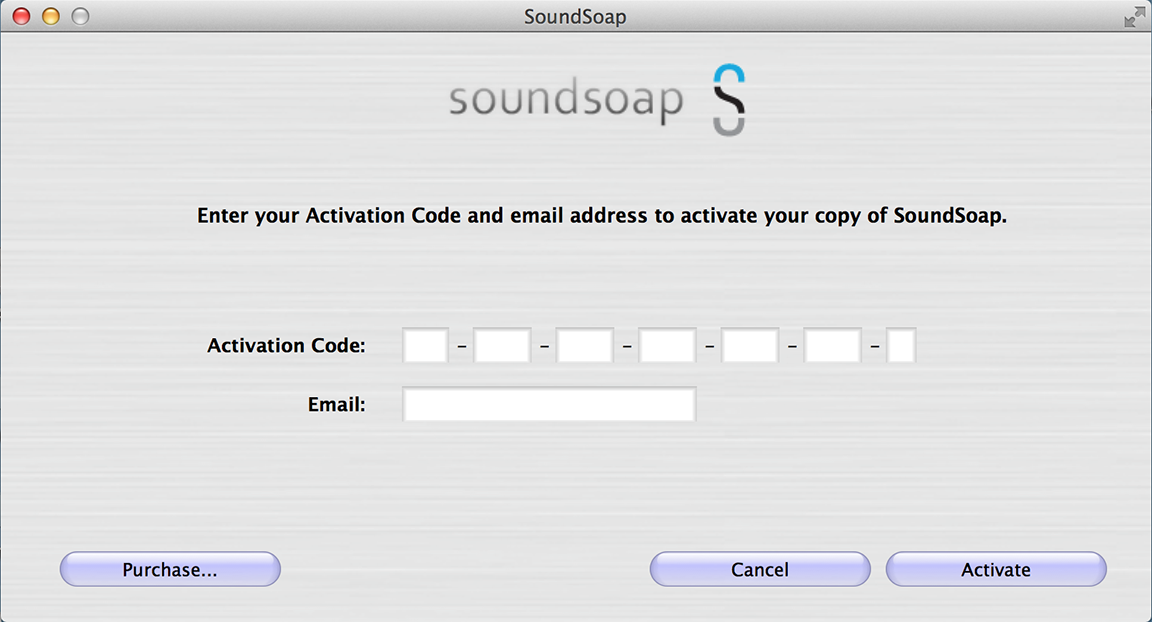
Table of Contents
Table of Contents
Table of Contents
Activation
1. Enter your activation code and email address. If you use more than one email address, be sure to make a note of which one you registered with – this will make managing your Soundness Registration Account faster and simpler in the future.
2. Click the “Activate” button. Once the software is activated, you can optionally register with Soundness. Registering your software with Soundness will allow you to receive product update information, tips, and other useful support resources.
Deactivating a Computer
If you need to deactivate a particular computer that will no longer be used to use the software, you can do so by following the steps below. The computer you wish to deactivate must be connected to the internet in order to deactivate it.
1. Launch the software application or plug-in.
2. Click on the Soundness product logo on the bottom right corner in the software's user interface. The deactivation panel appears.
3. Enter the email address you used to activate your copy of the software.
4. Click the Deactivate button to confirm the deactivation process – the Deactivation Success dialog appears.